How to Make an Employee Schedule (Weekly Shift Planning)
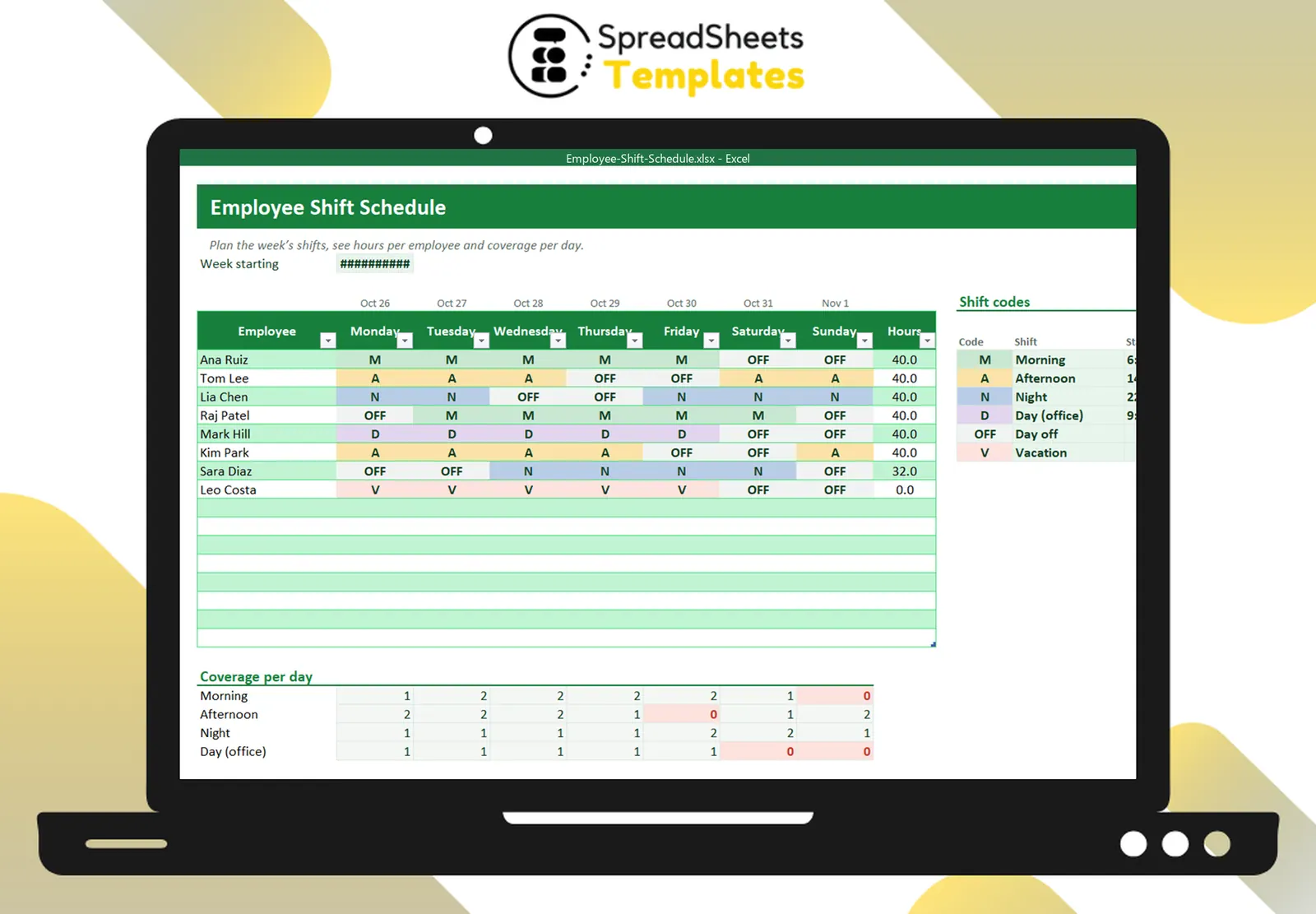
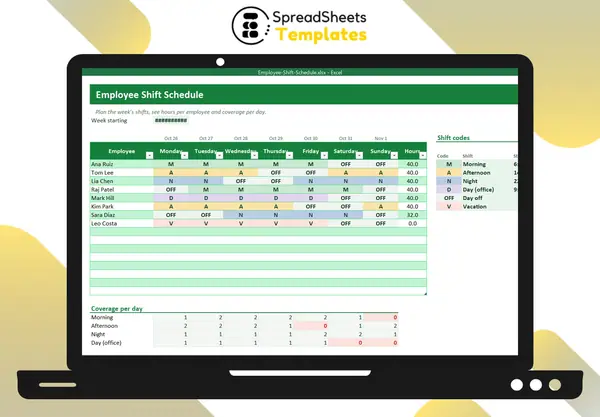
A good schedule puts the right number of people on every shift, respects availability and balances hours fairly. A simple grid with shift codes makes it fast.
Step 1: Define your shifts
Give each shift a short code with its times and paid hours:
| Code | Shift | Time | Hours |
|---|---|---|---|
| M | Morning | 6:00–14:00 | 8 |
| A | Afternoon | 14:00–22:00 | 8 |
| N | Night | 22:00–6:00 | 8 |
| D | Day (office) | 9:00–17:00 | 8 |
| OFF | Day off | — | 0 |
| V | Vacation | — | 0 |
Step 2: Know your coverage needs
How many people do you need on each shift, each day? Busy Friday nights need more people than quiet Tuesday mornings. Use sales or traffic data if you have it.
Step 3: Collect availability and time off
Ask for availability and vacation requests before you build the schedule.
Step 4: Fill the grid
Employees in rows, days in columns, one code per cell. Start with fixed patterns (people who always work mornings), then fill the gaps.
Step 5: Check hours and coverage
- Hours per employee: count each code × its hours. In Excel:
=SUMPRODUCT(COUNTIF(C10:I10, Codes), Hours). - Coverage: count each code per day:
=COUNTIF(C10:C25, "M"). Any zero is a gap.
Step 6: Publish early
Share the schedule at least a week ahead (some places require it by law). Print it or share the file, and announce changes clearly.
Fairness tips
- Rotate weekends and nights.
- Respect minimum rest between shifts.
- Balance hours unless someone asked for more or fewer.
Template
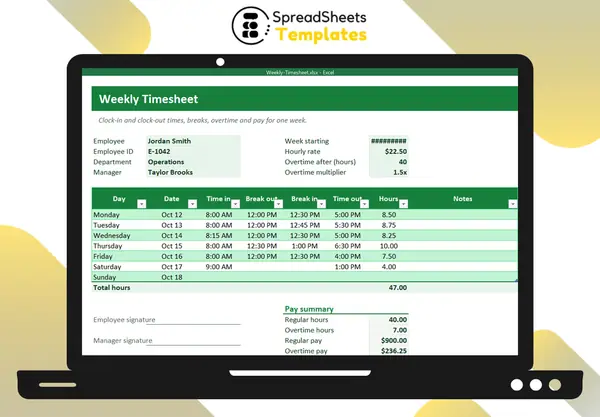
The Employee Shift Schedule has editable shift codes with colors, a weekly grid with drop-downs, hours per employee and coverage per shift with red alerts for gaps. Record actual hours with the Weekly Timesheet.