How to Calculate Hours Worked and Overtime in Excel
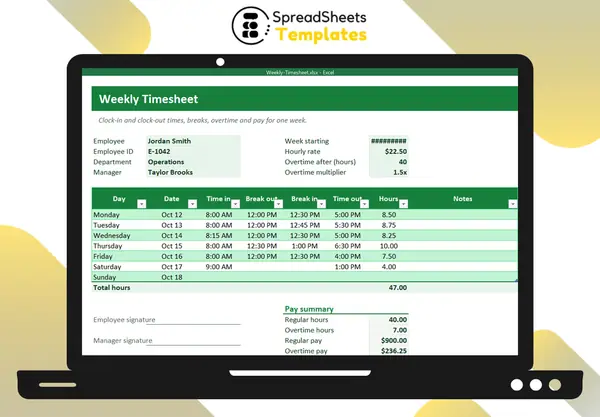
Excel stores times as fractions of a day, which makes calculating hours worked easy once you know two tricks.
Trick 1: subtract times, multiply by 24
If time in is in D11 and time out in G11:
=(G11 - D11) * 24
The subtraction gives a fraction of a day; multiplying by 24 converts it to decimal hours (8:00 to 17:00 = 9.00 hours).
Trick 2: subtract the break
With break out in E11 and break in in F11:
=((G11 - D11) - (F11 - E11)) * 24
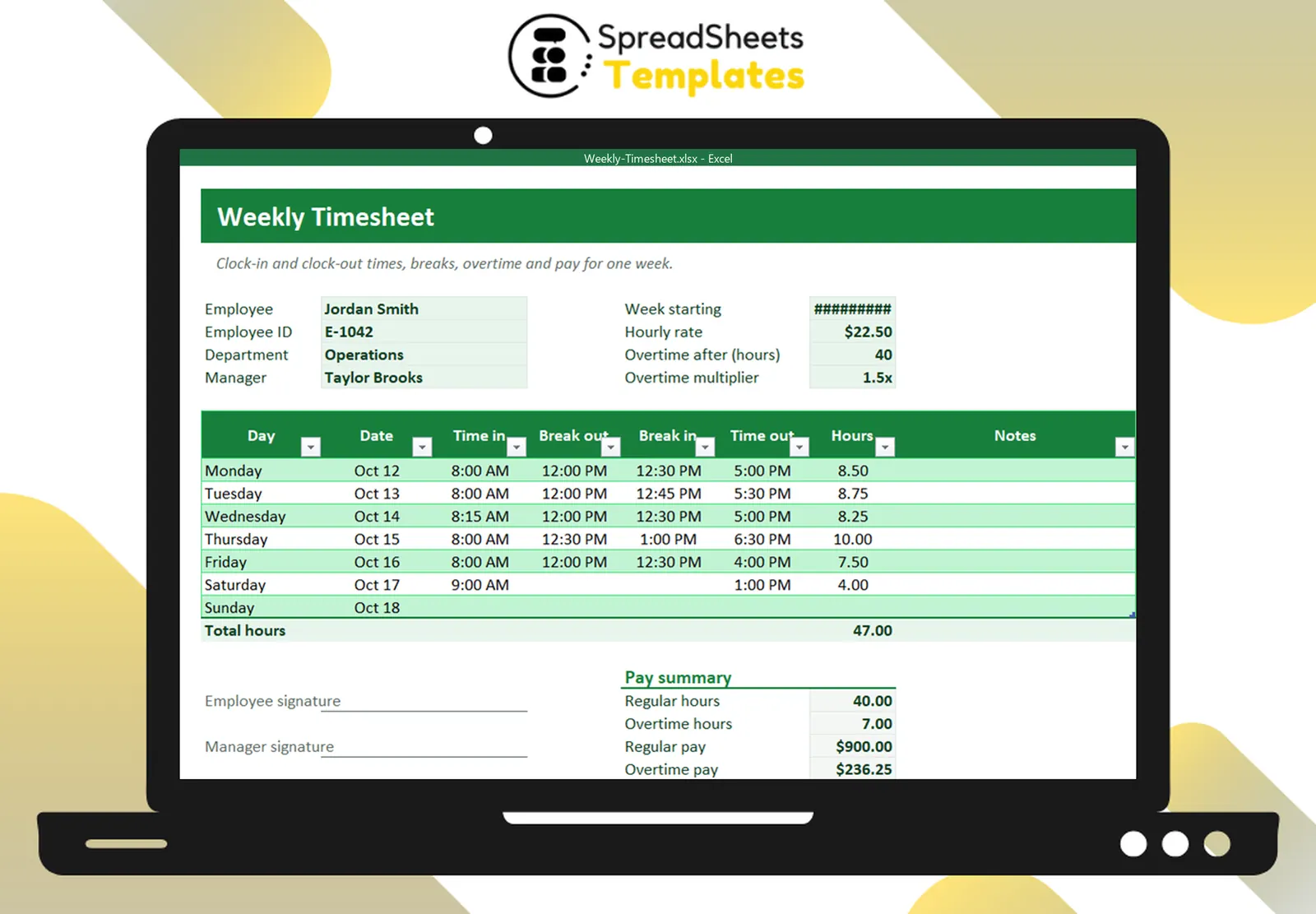
8:00–17:00 with a 30-minute lunch = 8.5 hours. Wrap it in ROUND(…, 2) for clean numbers.
Night shifts
If a shift crosses midnight, the time out is “smaller” than the time in. Use MOD:
=MOD(G11 - D11, 1) * 24
Weekly total and overtime
With the weekly total in H18 and the overtime threshold in H7 (e.g., 40):
- Regular hours:
=MIN(H18, H7) - Overtime hours:
=MAX(0, H18 - H7) - Pay: regular × rate + overtime × rate × 1.5
Rules vary: some places calculate overtime per day (over 8 hours) as well as per week. Check your local rules.
Format matters
Format time cells as h:mm AM/PM and hour totals as numbers with two decimals. Showing 8.5 instead of 8:30 avoids payroll confusion.
Approval
A timesheet is a record for payroll and labor law: include employee and manager signatures and keep copies.
Template
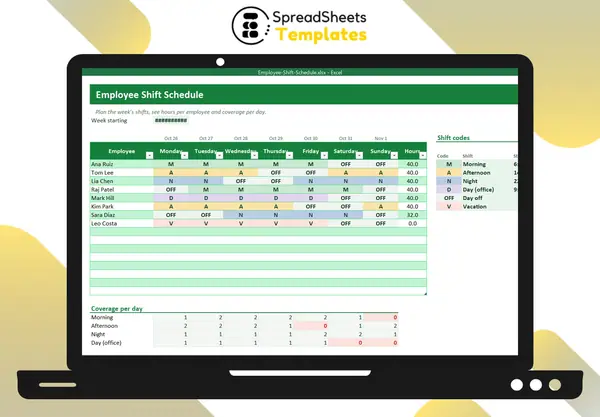
The Weekly Timesheet calculates daily hours with breaks, the weekly total, regular and overtime hours with your threshold and multiplier, and the pay — with signature lines. Plan shifts ahead with the Employee Shift Schedule.