How to Make a Budget Spreadsheet in Excel (Step by Step)
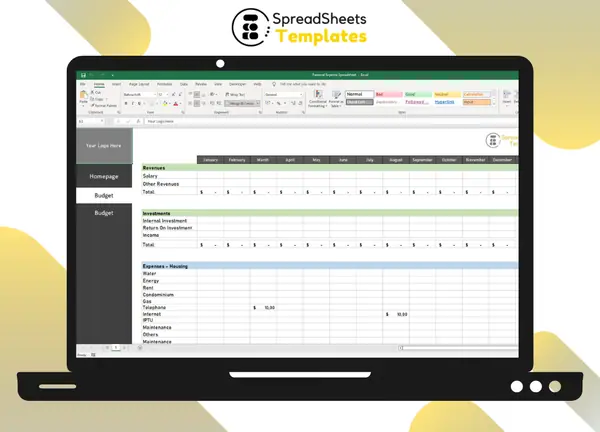
A budget is simply a plan for your money: how much comes in, where it should go and how much is left. A budget spreadsheet in Excel turns that plan into numbers you can check every month, without apps and without sharing your bank password.
Step 1: List your income
Create a section for every source of money that comes in each month:
- Salary (net, after taxes)
- Freelance or side income
- Investment returns
- Other income (rent received, benefits, refunds)
Use the net amount, the money that actually reaches your account.
Step 2: Group your expenses into categories
Too many categories make the budget tiring; too few hide the leaks. Three or four groups with 5–10 lines each work well:
| Group | Typical lines |
|---|---|
| Housing | Rent or mortgage, condo fees, water, energy, gas, internet, phone, property tax, maintenance |
| Services | School, courses, health insurance, gym, streaming and subscriptions |
| Personal | Groceries, eating out, clothing, hygiene, leisure, travel, gifts and donations |
| Financial | Debt payments, savings, investments |
Step 3: Lay out the 12 months
Put categories in rows and months in columns (January to December), plus a Year total column. This layout lets you see seasonal expenses (school fees, holidays, insurance) and compare months at a glance.
Step 4: Add the formulas
| What | Formula (example) |
|---|---|
| Total income for the month | =SUM(B3:B6) |
| Total for each expense group | =SUM(B10:B18) |
| Monthly balance | =Total income − Total expenses |
| Year total for a line | =SUM(B10:M10) |
| Share of income for a group | =Group total / Total income |
Format the balance with conditional formatting: green when positive, red when negative.
Step 5: Set targets with the 50/30/20 rule
A simple starting point for personal budgets:
- 50% needs: housing, groceries, transport, health, minimum debt payments
- 30% wants: eating out, leisure, travel, non-essential shopping
- 20% savings and extra debt payments
Add a small table that compares your real percentages with these targets. The gaps show exactly where to adjust.
Step 6: Record and review
- Record expenses weekly. Waiting until the end of the month means guessing.
- Compare planned vs. actual for each line at the end of the month.
- Adjust next month’s plan, not just this month’s numbers.
Common budgeting mistakes
- Forgetting annual and irregular expenses (insurance, taxes, gifts). Divide them by 12 and budget them monthly.
- Budgeting gross income. Use what actually arrives in your account.
- No line for “small stuff”. Coffee, apps and delivery fees add up; give them a line.
- Giving up after one bad month. A budget is a tool, not a test.
Personal or business budget?
The steps are the same, but a business budget also separates revenue channels, operating and administrative expenses, taxes and partner withdrawals, and compares the forecast with what actually happened. For that, see the Business Budget Worksheet. To follow the money day by day, read how to make a cash flow spreadsheet.
Skip the setup
Our Personal Budget Spreadsheet already has the full year laid out, with income, housing, services and personal expense categories, monthly balance, yearly totals and two summary charts. Type your numbers and the formulas do the rest. Want to know your overall financial position too? The Net Worth Calculator adds up everything you own and owe.
FAQ
Is Excel or an app better for budgeting? Excel gives you full control and privacy, with no bank connection. Apps automate imports but share your data with a third party.
How many categories should a budget have? Usually 15 to 30 lines grouped into 3 or 4 groups. Enough to find leaks, few enough to update in minutes.
What if my income changes every month? Budget based on your lowest typical month, and treat anything above it as extra for savings or debt.