How to Make a Monthly Budget in Excel (Step by Step)
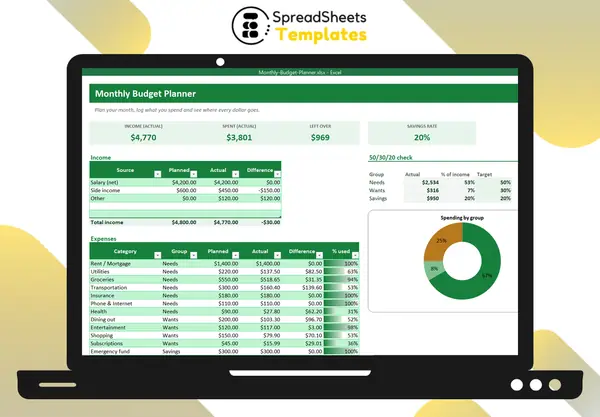
A monthly budget in Excel is the simplest way to take control of your money without paying for an app or giving anyone access to your bank account. You decide how much goes to each category at the start of the month, log what you spend, and compare the two at the end.
1. Start with your real income
Write down the money that actually reaches your account each month: your net salary (after taxes), side income, benefits. If your income changes from month to month, use a conservative number — the lowest of the last three months is a good rule.
2. Choose a short list of categories
Fewer categories make a budget you will actually keep. A good starting set is:
- Needs: housing, utilities, groceries, transportation, insurance, phone and internet, health.
- Wants: dining out, entertainment, shopping, subscriptions.
- Savings: emergency fund, retirement, extra debt payments.
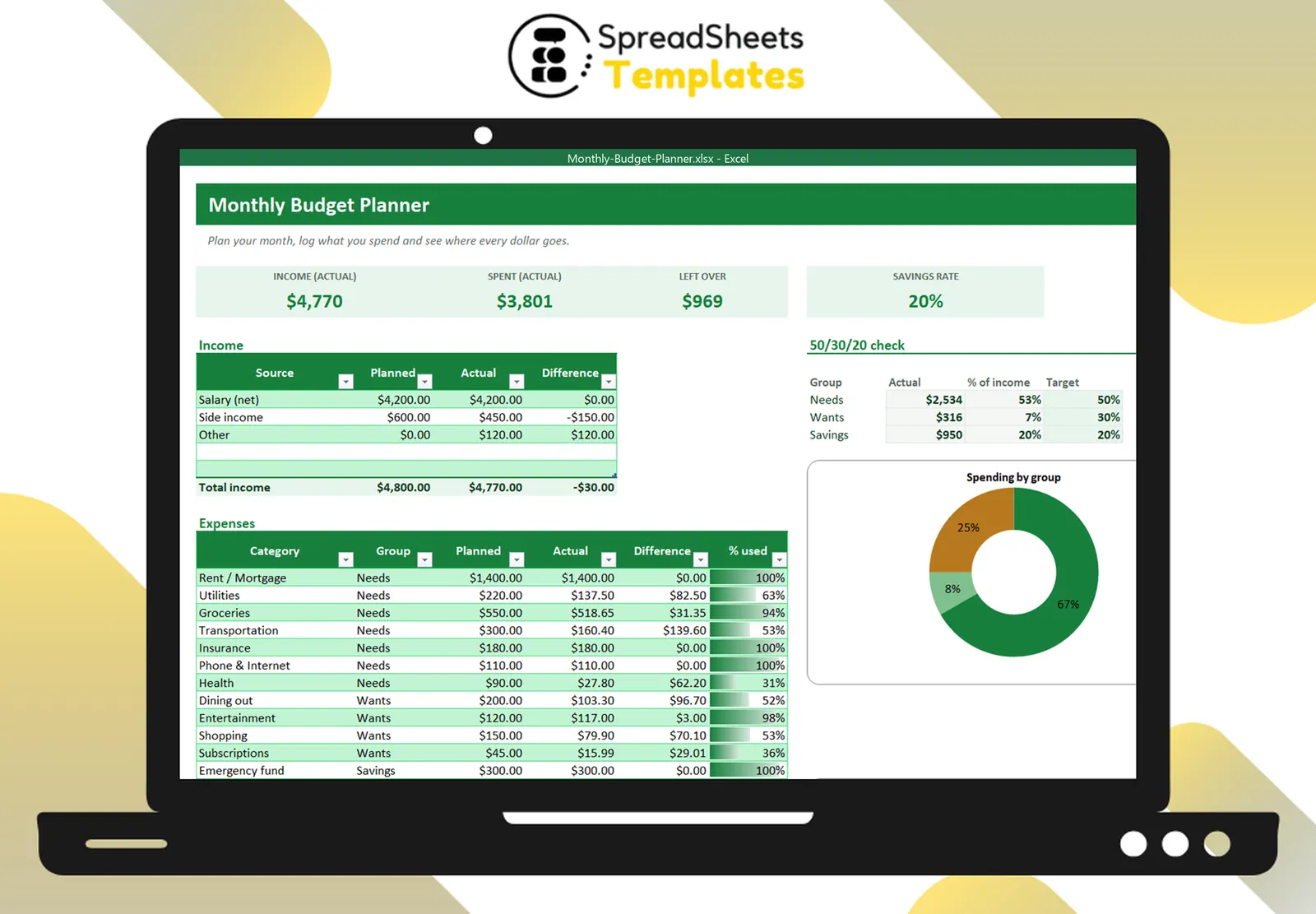
Grouping categories this way lets you check your plan against the 50/30/20 rule: about 50% of income for needs, 30% for wants and 20% for savings and debt. It is a guideline, not a law — in expensive cities housing alone may take 40%.
3. Give every dollar a job
Type a planned amount for each category until the total of your plan equals your income. If the plan is bigger than your income, cut wants first. Money “left over” in the plan is not wasted: send it to savings.
4. Log every expense (it takes 2 minutes)
The plan is only half of a budget. The other half is tracking. In Excel, a simple transactions table works best: date, description, category and amount. Use a drop-down list for the category so you never type it wrong, and let a SUMIFS formula add up each category automatically:
=SUMIFS(Transactions!E:E, Transactions!D:D, B12)
Do it twice a week, with your bank app open. Waiting until the end of the month is how budgets die.
5. Compare plan vs actual
At any moment you want to see, per category, the planned amount, the actual spending and the difference. Conditional formatting that turns negative differences red makes problems jump out. A “% used” column with data bars shows which categories are close to the limit before you go over.
6. Review and adjust every month
At the end of the month, ask three questions:
- Where did I overspend, and was it a one-off or a pattern?
- Is my plan realistic? If groceries are always $80 over, the plan is wrong, not you.
- How much did I save? Your savings rate (savings ÷ income) is the single best number to track over time.
Save a copy of the file for each month so you can compare.
Common mistakes to avoid
- Forgetting irregular expenses. Car insurance, gifts and annual subscriptions break budgets. Set aside a monthly amount for them (see our sinking funds tracker).
- Budgeting gross income. Always plan with what actually lands in your account.
- Too many categories. If you have 40 lines, you will stop tracking in a week.
Skip the setup
If you would rather start today than build the formulas yourself, the Monthly Budget Planner has all of this ready: income table, 14 editable categories grouped by needs, wants and savings, a transactions tab with drop-downs, the 50/30/20 check and charts. Type your numbers and the spreadsheet does the math.